Controls for keyboard, controller and Deck
Croc 2 uses a jump button, a tail spin button and a jump-and-spin combo for the triple jump; the game lists full controller support and a gamepad as recommended, so plug in a pad if you have one.
What the game asks your hands to do
Croc 2 is a four-button platformer at heart. Everything else — camera, vehicles, menus — is secondary. The Steam listing says the game has full controller support, carries a "Gamepad Recommended" tag and supports Steam Cloud, which is a polite way of saying the remaster was built for a pad and the keyboard map is a fallback.
| Action | When you use it | Notes |
|---|---|---|
| Jump | Every platform, every gap | Tap for a normal hop, hold for height |
| Tail spin | Combat, crates, switches | Croc's only attack; also breaks boxes |
| Triple jump | Long gaps and high ledges | Three timed jumps in a row |
| Camera | Looking up, around corners | The one input new players forget |
| Vehicle accelerate / brake | Car, boat, plane | Changes per vehicle |
| Vehicle steer | Car, boat, glider, plane | Analogue on a pad |
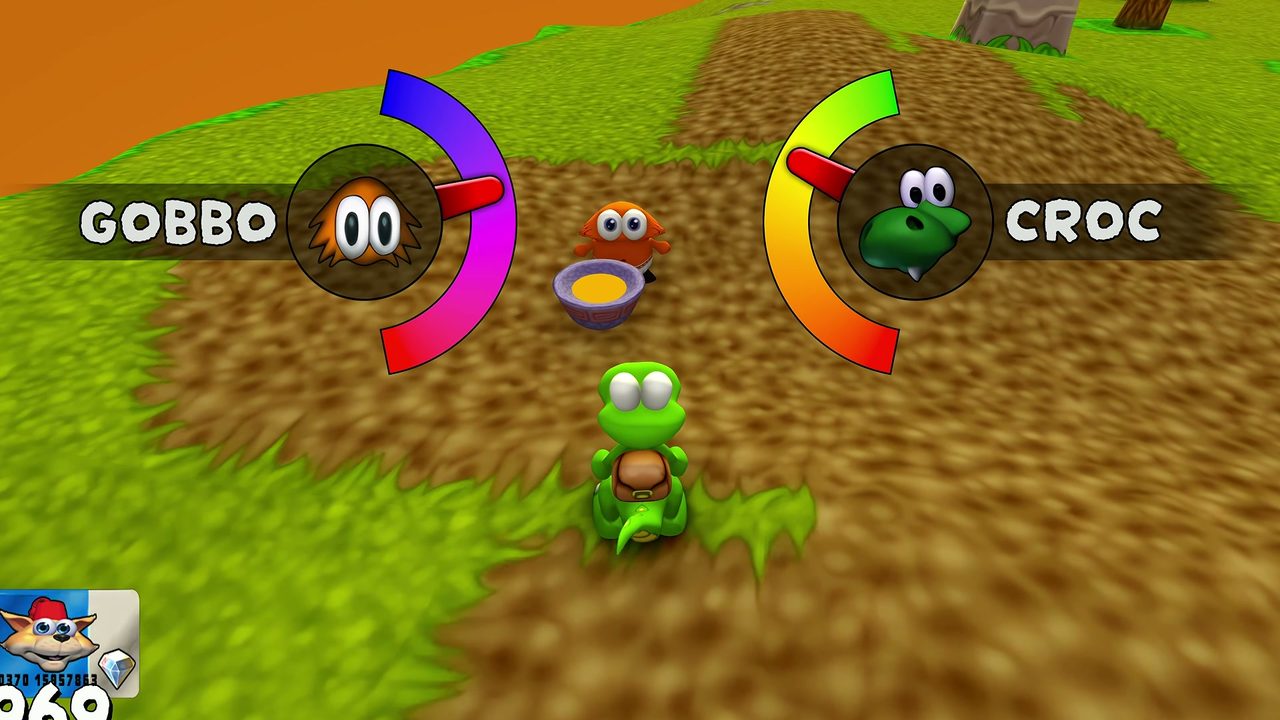
A pad layout that works
The game does not publish a default bind list, so treat this as a starting point rather than gospel: face button for jump, second face button for tail spin, shoulder button for camera reset, triggers for vehicle throttle and brake. The important part is that jump and spin sit under different fingers, because the triple jump is a rhythm input and you do not want to be re-gripping between hops.
On keyboard, the same logic applies: put jump on the space bar, tail spin on a key your left hand can hit without moving, and camera on the mouse or the arrow cluster. Avoid binding jump and spin to adjacent keys; the triple jump punishes double-taps on the wrong button.
The camera is a control, not a setting
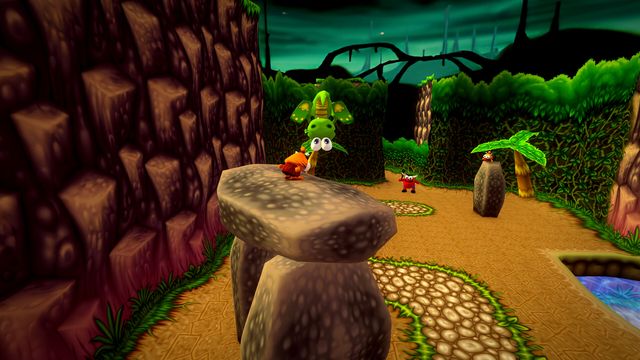
Most failed jumps in Croc 2 are camera failures. The game uses a trailing camera, so a ledge you cannot see is usually a ledge you have not looked at: nudge the camera before you commit, especially in Cossack Village's vertical sections and in the minecart rooms where the camera swings 180 degrees.
Two habits worth building early: reset the camera after every landing, and look down before you drop into a new room. The game rarely kills you for going slowly.
Controller versus keyboard
| Input | Strength | Weakness |
|---|---|---|
| Gamepad | Analogue steering in vehicles, comfortable triple jump | Nothing specific |
| Keyboard | Precise camera with a mouse | Binary steering makes boat and plane sections harder |
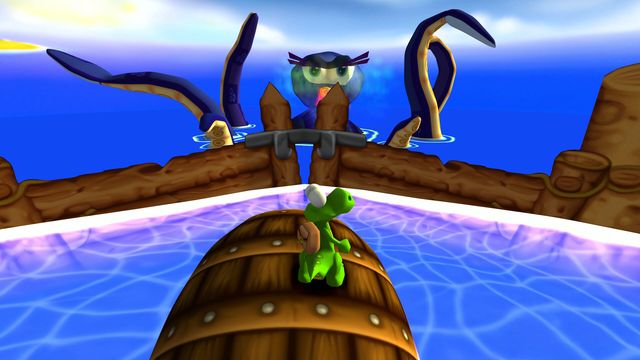
If you own a pad, use it. The vehicle sections are the reason: a car or a boat with digital steering either turns fully or not at all, and the boat race achievement — first place at the end of lap one — is much harder without analogue input.
Steam Deck and handheld mapping
The Deck's built-in controls map cleanly onto the pad layout above, and Steam Input handles the rest. Two practical notes: the triple jump needs a responsive face button, so avoid a layout that puts jump on a rear paddle with a long travel, and the camera reset is worth binding to a shoulder button because the Deck's right stick is easy to knock.
The Steam Deck page covers hardware and Proton; the moves page covers the actual timing of the triple jump.
If the controls feel wrong
Three fixes, in order. First, check whether the game is reading your pad as a pad or emulating a keyboard — Steam Input can double-map and produce dropped jumps. Second, raise the camera sensitivity before you touch movement sensitivity; most "slippery" complaints are camera lag. Third, if a vehicle section keeps failing, switch to a pad for that section rather than fighting the keyboard.
Where to go next
The beginner guide puts these controls into an order of learning, and the moves and triple jump page explains why the third jump changes level routing.